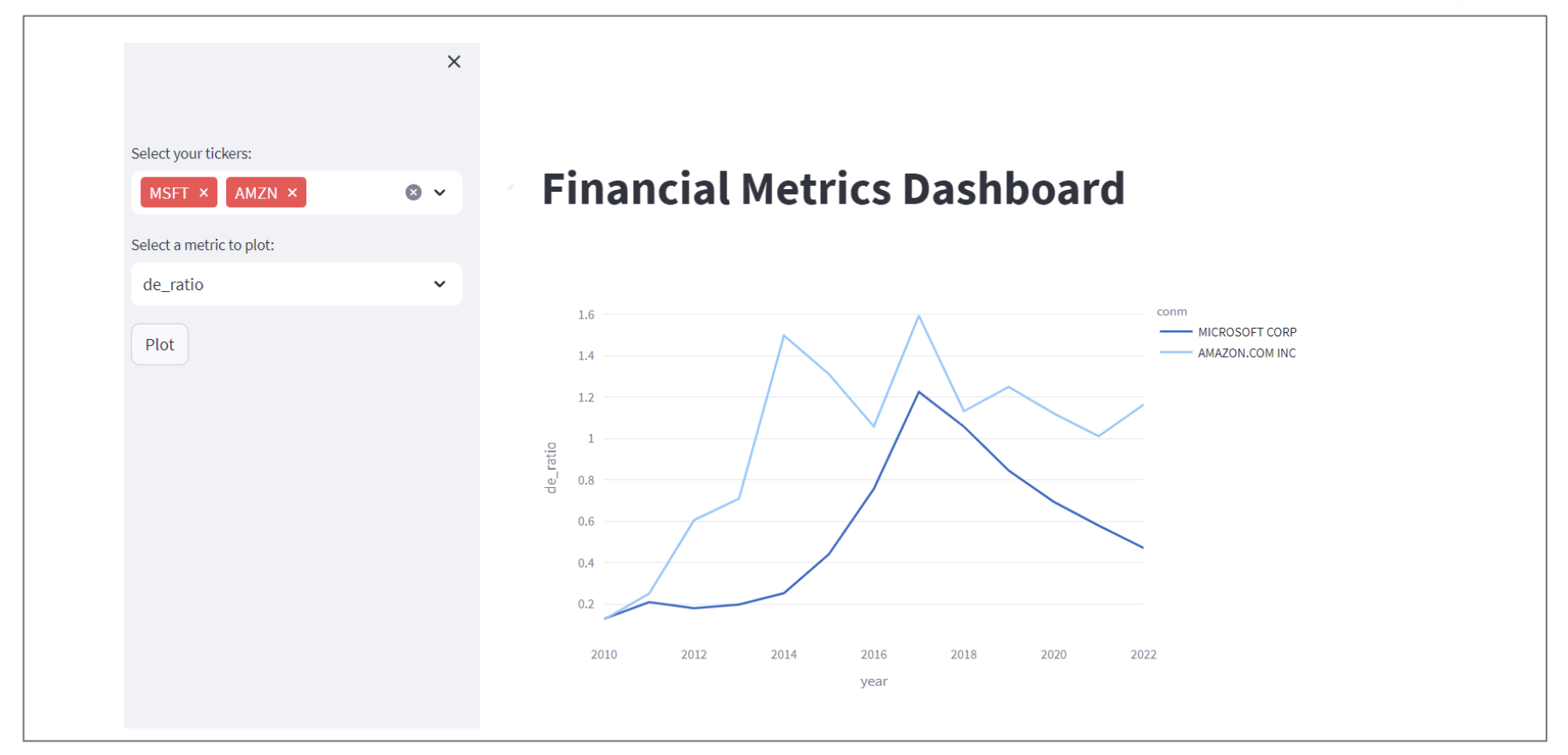
4 Prototyping an app with streamlit
4.1 Context and Goal
You are going to prototype an interactive financial dashboard app using Vibe Coding.
Transition from a prototype .ipynb file to a production-ready .py file that builds an interactive Streamlit dashboard.
Data scientists often start in Jupyter Notebooks for exploration and analysis. However, real-world applications require deployable, interactive dashboards for sharing insights with others.
You are provided with the some preliminary analyses of financial data in Jupyter notebook. You are tasked to refactor it and create an Streamlit web application to present the data in an interactive way.
-
Compute Financial Ratios Notebook.ipynb– a Jupyter Notebooksp500_data.csv– Financial data.sp500_tickers.csv– List of tickers.
4.2 The Vibe Coding Setup
You are going to use VS Code with Copilot in Github codespaces to “vibe code” a dashboard web application. Let’s cover a few basics before you start.
Each Github Codespace runs on a Linux virtual machine that already has tools like Python, Jupyter Notebook support, various packages, and VS Code (via the web interface) preinstalled. When you open a Codespace, you’re actually using VS Code running in your browser, connected to that remote Linux machine. So:
- Codespaces = a Linux system in the cloud + Python + JupyterLab + various Python packages + VS Code (IDE interface).
You also can set up the same development environment in your local PC. You will need to install multiple softwares and tools, such as Python, VS Code, Python extension in VS Code, and each python package that you might use (such as pandas).
| Environment | What it includes | Notes |
|---|---|---|
| Codespaces | Linux + Python + Jupyter + various packages + VS Code (web) | Cloud-hosted; nothing to install locally; runs VS code interface |
| Google Colab | Linux + Python + Jupyter + various packages | Cloud-hosted; focuses on notebook interface |
| Local PC | Whatever you install (Python, VS Code, Jupyter) | Runs directly on your machine |
4.2.1 GitHub Copilot and Copilot Chat: Ask, Edit and Agent Modes
Let’s introduce the features of GitHub Copilot and Copilot Chat. GitHub Copilot comes with four distant modes that you may use:
- Inline Chat or suggestions: quick in-context code suggestions directly within VS Code using shortcuts
⌘+IorCtrl+I.
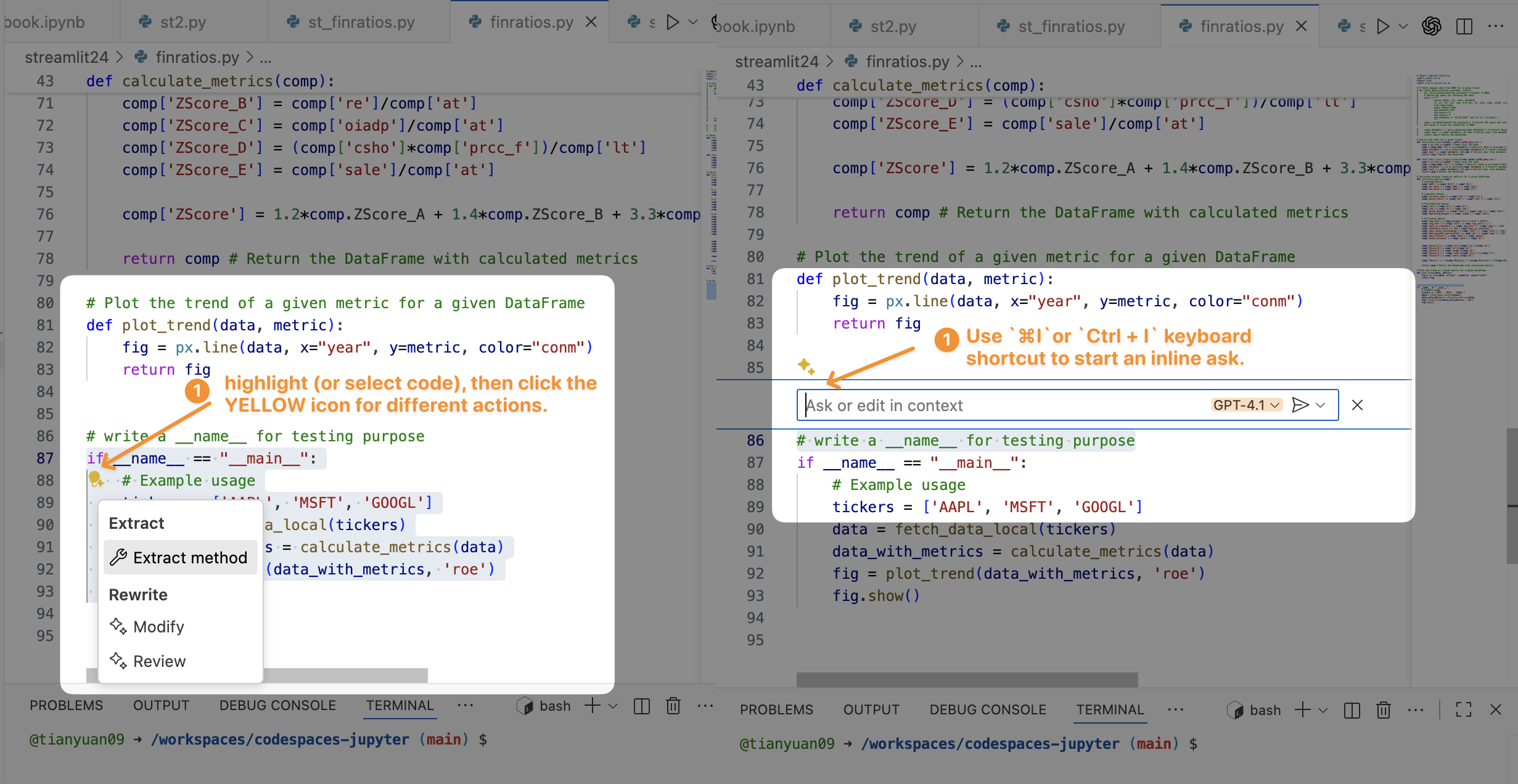
Ask Mode: best for Q&A. Highlight some code, then ask Copilot questions about its logic, purpose, or braistorm ideas implementation.
Edit Mode: give you inline, review-ready code edits across the files.
Agent Mode: an autonomous mode where Copilot analyzes context (e.g., files in your workspace) and performs tasks based on your request.
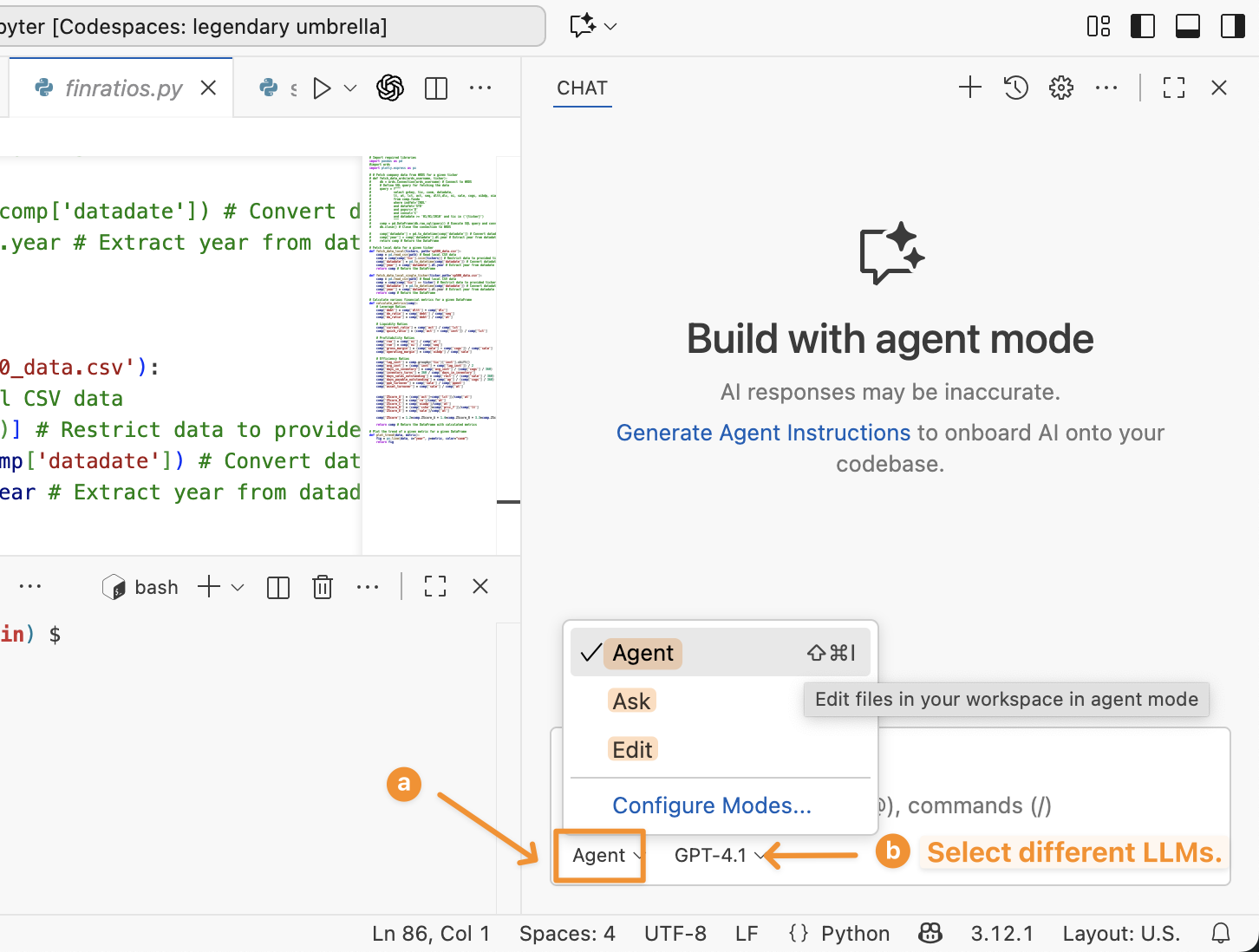
4.2.2 Tips for Using the Copilot Agent Mode
To get the best results in Agent Mode, you can provide additional context or use special commands to guide Copilot about what you want it to do.
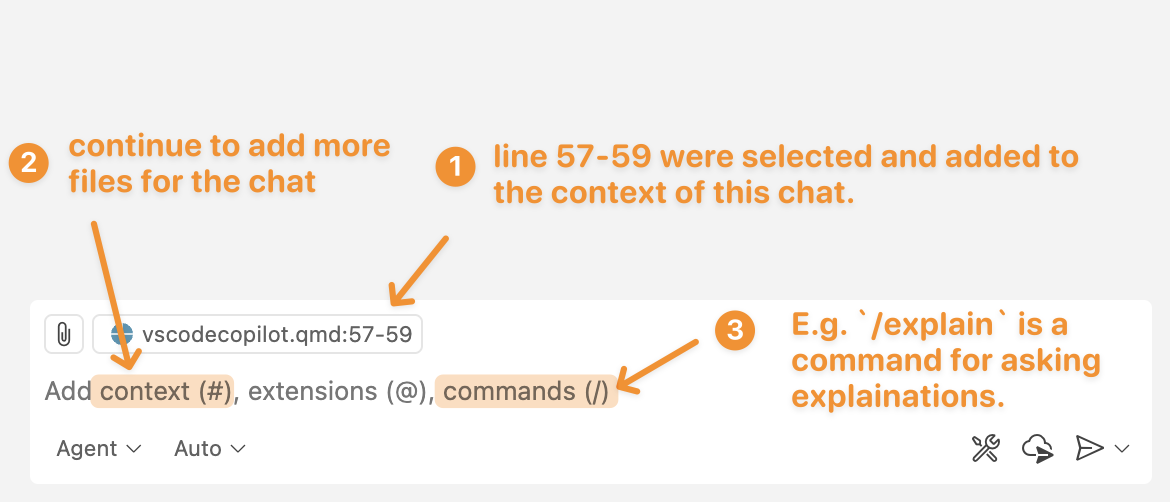
Context is the information you give Copilot so it understands what you’re working on and can respond more accurately. In Agent Mode, context can include the code you’ve selected, other .py files, or any extra notes you write with #.
- Highlight code (e.g., line 57-59 of the
vscodecopilot.qmdfile) in the file will automatically add those lines of code in the context (see Figure 4.1) - Add context with
#. Add additional files that you want Copilot to read before completing the task. - commands with
/. E.g./explainis a command asking for explanation of the code.
4.2.3 Vibe-coding vs AI-assisted Coding
Using the Agent Mode will allow you to vibe code without reading or understanding any of the code. You relied on the AI to produce something that looked right without knowing how it actually worked.
However, if you read, wrote, or edited the code while building the app, you were doing AI-assisted coding — working with the AI to shape logic, fix bugs, and design structure.
| Aspect | Vibe Coding | AI-Assisted Coding |
|---|---|---|
| Definition | A no-code workflow where you don’t read, write, or edit code. You simply test the prototype or app to see if it meets your design or intent. | A coding workflow where you interact with and modify code using AI tools like Copilot’s Ask, Edit, or Inline Chat. |
| Goal | Validate the “vibe” — check if the prototype looks, feels, and behaves as intended. | Build, refine, and ship production-ready features with AI support. |
| User Interaction | No direct code manipulation — focus is on results, not implementation. | Actively generate, read, edit, debug, and review code and suggestions with AI |
| AI Tools | GitHub Copilot Agent Mode | GitHub Copilot Ask Mode, Edit Mode, Inline Chat |
| Mindset | “I don’t care how it’s built — does it look and work as intended?” | “I’ll collaborate with AI to understand, fix, or enhance the code.” |
| Best For | Rapid prototyping, early design validation | Full-cycle software or data product development: feature implementation, optimization, and maintenance. |
| Limitations. | Ignores the complexity, lacks of consideration over performance, scalability, and maintainability. | Supports real data engineering work but still requires developer understanding and validation |
Both Vibe-coding and AI-assisted coding have their place in development. Use vibe-coding for quick validation and prototyping, and AI-assisted coding for building robust, production-ready data science solutions.
Although vibe-coding feels exciting, you can’t rely on it from prototype to production, as it often makes mistakes or produces “shit code” — duplicated logic, buggy and insecure implementations, and tangled features no one dares to maintain. In data science, that might look like a notebook full of hard-coded file paths, random seeds, and global variables — impossible to reproduce or scale.

Also, don’t fool yourself into thinking you’re learning to code while working in Agent Mode — you’re NOT building the skills yourself. You can’t learn guitar just by watching someone else play, and you can’t learn piano by watching performances. Likewise, you can’t truly learn programming just by watching an Agent write code for you. The craft lies in understanding, experimenting, and making mistakes. That’s how you move from vibe-coding prototypes to engineered, production-ready solutions.
While vibe coding can accelerate prototyping and help non-technical users validate design ideas, it often overlooks many critical aspects of data engineering — such as scalability, performance, maintainability, and security. Building reliable data science solution or product remains a complex, multi-layered process that requires thoughtful coding, testing, and collaboration between designers, developers, and AI tools.
4.3 Lab: Make it a .py file with functions
Let’s do some vibe coding!
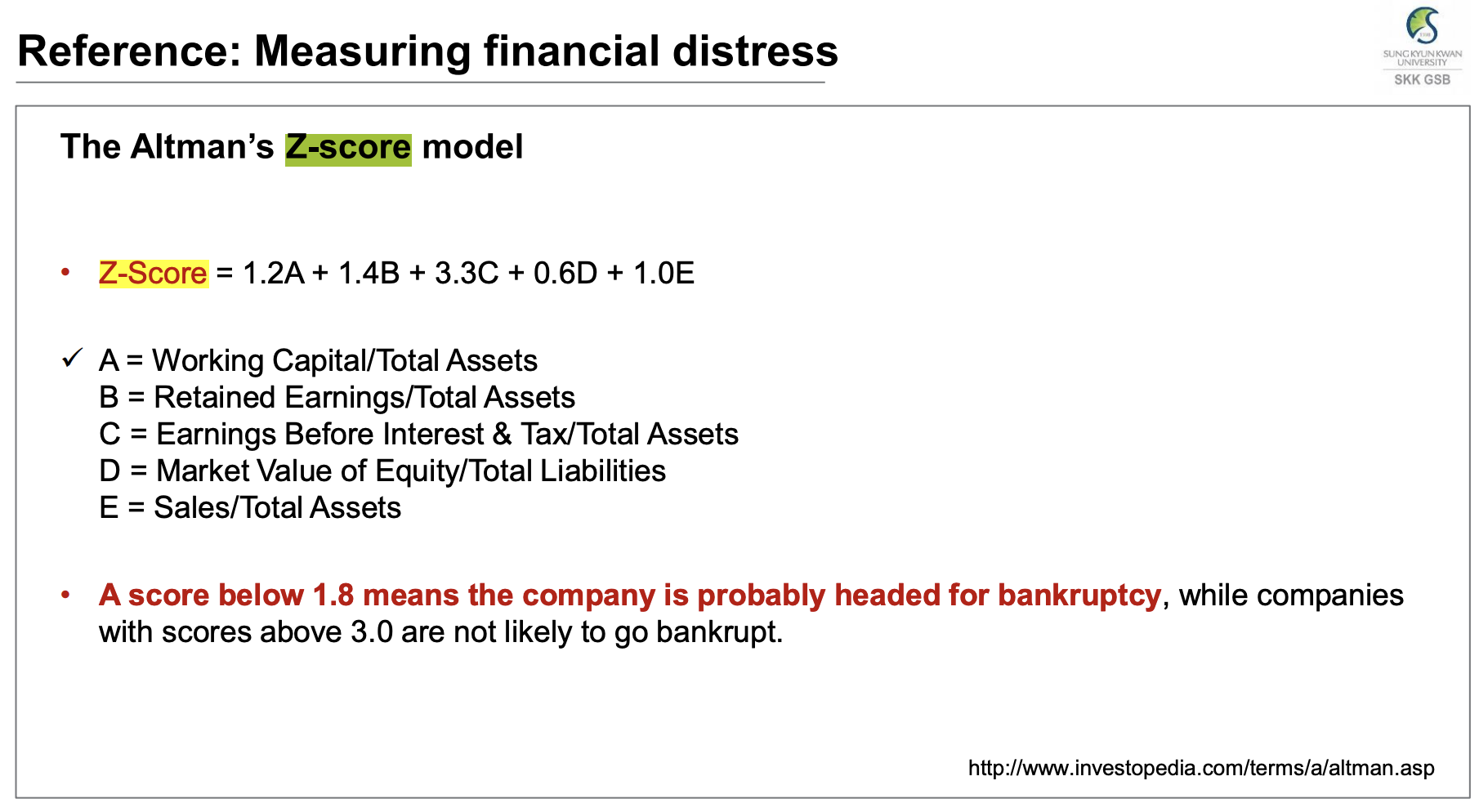
-
fetch_data_localfetch_data_local_single_tickercalculate_metricsplot_trend
Good practices:
You can copy and paste the good practice to Copilot when completing the tasks above.
if __name__ == "__main__":
    # Simple test cases
    print(compute_pe_ratio(1000000, 50000, 30))
4.4 Learn a bit about Streamlit
You don’t know what Streamlit can do. Streamlit doesn’t know what you want.
But, we’ve gotta start somewhere.
So let’s learn a bit. Once you know what it can do,
you’ll finally know what you can make it do (with AI’s help).
- What is Streamlit, and where is its API reference and official documentation?
- What can Streamlit do — what kinds of apps or problems is it best at solving?
- What small examples or experiments can I build to quickly discover and learn its core features?
- Start with the official docs and examples — skim the Streamlit docs homepage and gallery to get a mental map of what’s possible before diving into code.
- Learn by doing small experiments — build micro-apps (e.g., one with a button, one with a chart) to turn reading into muscle memory.
- E.g., create
app1.py,app2.pyfiles each to test and run some micro streamlit apps.
- E.g., create
- Read code, not just tutorials — explore community demos or open-source Streamlit apps to see how others structure layouts, manage state, and handle inputs.
- Iterate with feedback loops — run streamlit run
app.pyoften and tweak one thing at a time; immediate visual feedback accelerates understanding. - Reflect and generalize — after each mini-project, note what patterns repeat (e.g., sidebar widgets, caching, layout control) to build knowledge for future tools.
4.5 Prototype a Streamlit app
Here is an example.